Getting started with Team Focus
Set up your team, invite members, and start using shared reports to understand collective focus patterns and protect deep work time across your org.
What's Included in Team Focus?
Team Focus gives every member their own individual Focus features, plus a shared layer that lets managers see productivity patterns across the org, protect focus time, and support better work habits across the organization.
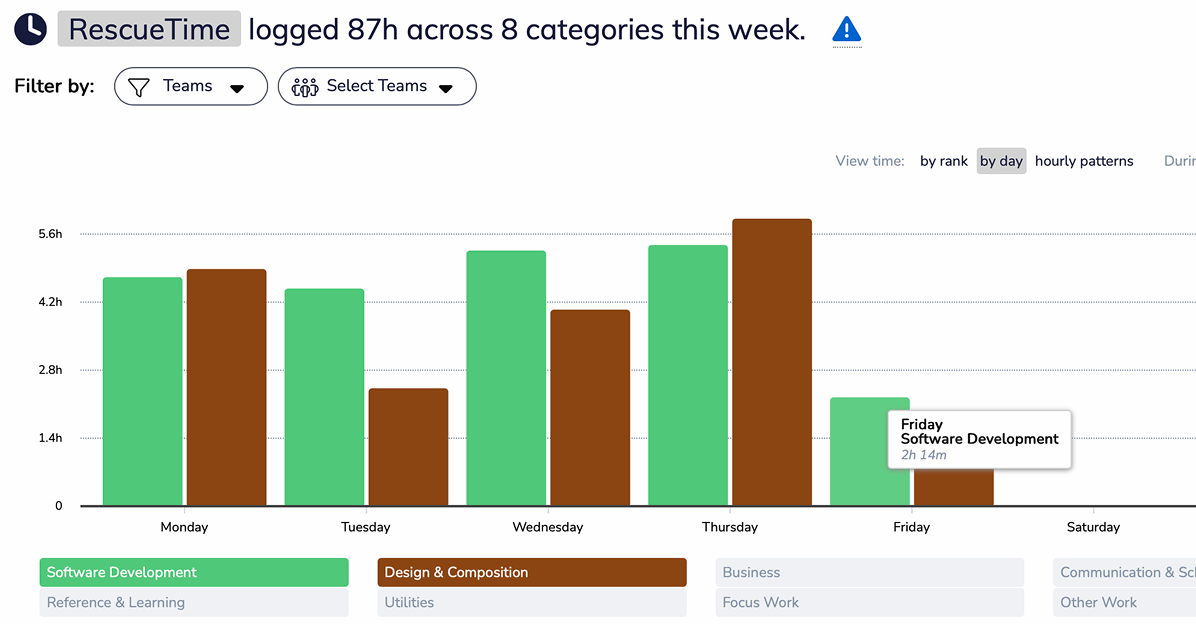
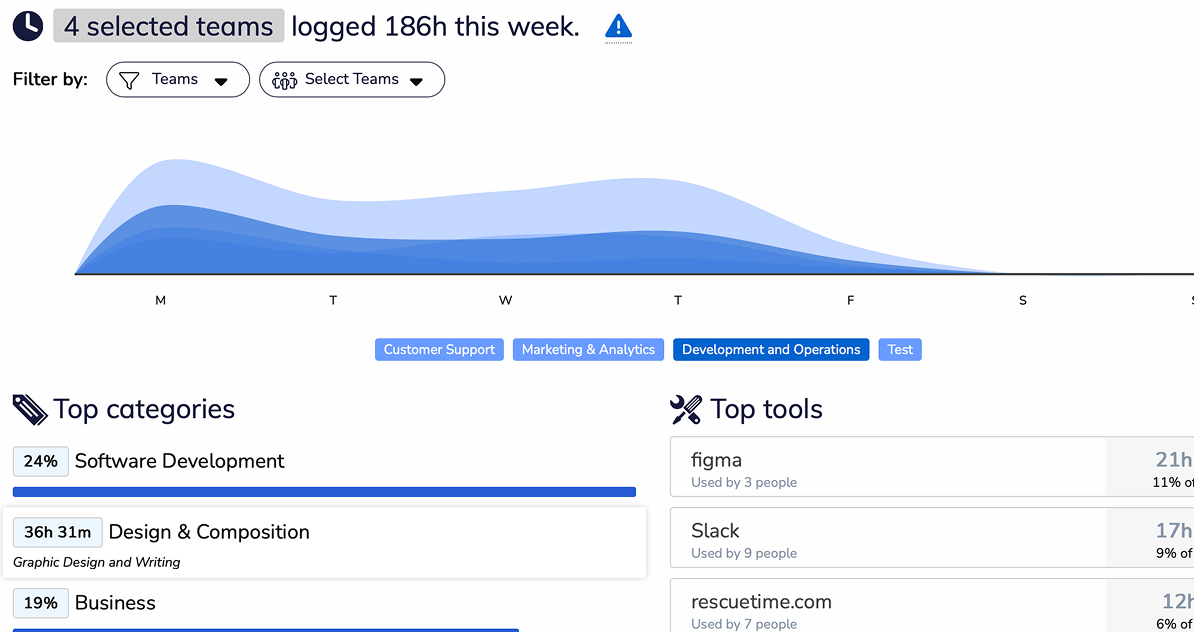
View productivity metrics, top categories, and key tools across your team, filterable by organization, team, or individual user.
Every team member gets full access to Focus Sessions, Goals, Alerts, and their own reports.
Managers see team-level data. Members see only their own. Privacy is protected by default.
See when your team is most focused and identify scheduling patterns that support deep work.
Set Up Your Team Account
- Create or upgrade to a Team plan
Team plans are only available at rescuetime.com/pricing. Select the Team Focus or Team Bundle plan and complete checkout.
- Name your organization
During setup you'll be prompted to name your team. This is how your org will appear to members in their accounts.
- Create teams within your organization
Teams let you segment your organization into groups such as Customer Support, Development, or Marketing, so you can review reports for one group instead of the whole org at once. Open Organization Settings, go to Teams, click + Create Team, enter a team name, and assign the managers who should be able to view that team's reports. Repeat for each group you want to track separately.
- Set key tools for each team
Key tools are the apps and websites you want to watch more closely in reports, such as Slack, Zoom, your project management software, or internal tools. Each team can have its own list. Open Organization Settings → Teams, click Key Tools next to a team, then use Add new Key Tools to toggle tools on from recent activity, Copy from to reuse another team's list, or Rebuild now to refresh it. Click remove to drop any tool.
- Restrict invitations to your domain
Under Organization settings, you can limit invitations to your company email domain so only colleagues with your organization's email address can join.
- Configure work schedule settings
Set your organization's default work hours at Account Settings → Work Schedule. This affects how team reports calculate productive time. Without it, reports may include evenings and weekends in your team's data.
Invite & Onboard Members
- Invite members and add them to a team
Go to Organization Settings → Members and click + Invite new members. Enter one or more email addresses (one per field, click add another email for more) and add an optional personal message. Before sending, pick which team each person should join from the team dropdown, then click Invite Members. Each person gets an email invitation to join your organization.
- Assign member roles
Each member can be assigned as a Member (individual access only) or Manager (team dashboard access). Set roles from the Team Member Roles page.
- Members install the app
Each member needs to install the RescueTime desktop app and sign into their account. Share the Solo Focus Quick Start guide with new members to get them set up quickly.
- Communicate the why
Do this before invitations go out. RescueTime works best when teams understand its purpose from the start. Be transparent that it's for personal productivity, not surveillance. See the manager communication guide →
Team Focus Sessions
Every team member gets full individual Focus Session access, the same experience as the Solo plan.
Your team-level view shows Daily Pattern data, filterable by organization, team, or individual user. Use that data to identify peak focus windows and protect them from meetings.
Team Reports & Insights
Manager-level reports are designed to surface patterns across your team, not to scrutinize individuals. Use them to spot systemic issues like meeting overload or fragmented focus time, and bring those findings into conversations with your team.
Overview of Focus Work hours, productive vs. distracting time, and trends across the whole team.
Shows when during the day the team is most focused. Use this to protect peak hours from meetings.
See which apps and categories consume the most team time. Useful for spotting tool overload or communication bottlenecks.
Each team member has access to their own detailed reports. Managers see Key Tools; members own their own data.